Want to use sharepa straight from the chat? How to connect Claude or ChatGPT
A campaign link is your normal link with a small addition at the end, for example ?ref=linkedin. The page looks exactly the same. But your statistics show how many visits came through that link.
Why it helps
Without the addition, almost everything ends up under "Direct". That is not sharepa's fault. WhatsApp, most mail apps and QR codes do not send along where someone came from. So for the statistics, a click in your newsletter looks the same as someone typing the address by hand.
With the addition, the link itself tells where it came from. So the rule is: use a separate link for each channel. For example:
| Where you share the link | Link |
|---|---|
| LinkedIn post | course.sharepa.page/?ref=linkedin |
| Newsletter | course.sharepa.page/?ref=newsletter |
| QR code on a flyer | course.sharepa.page/?ref=flyer |
| Instagram bio | course.sharepa.page/?ref=instagram |
After a few days you can see whether the flyer brought more than the post. With a QR code, that is otherwise almost impossible to find out.
How it works
- Open your page in the app under "My pages".
- Next to the address there is a button "Link for …". Click it.
- Pick a channel from the list, such as LinkedIn, Instagram, WhatsApp, Newsletter or Flyer / QR code. If none fits, type your own name, for example
trade-fair. - Click "Copy link" and paste the link wherever you share it. For a QR code, use exactly this link.
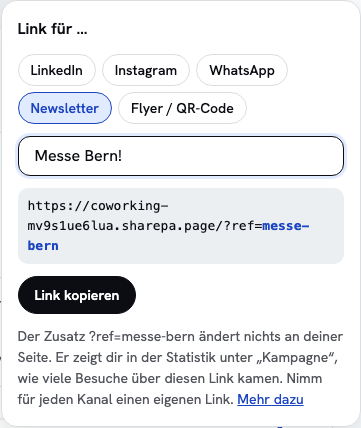
The "Copy address" button next to it still copies the plain link without any addition. If you connected your own domain, the campaign link uses that domain.
Where you see the result
Open the page in the app and go to the "Statistics" section. The "Source" card has a "Campaign" tab. It lists every addition with its number of visits, for example "LinkedIn 41" and "flyer 12".
With the one-time plan you click a row, and all statistics show only those visits: which countries they came from, which device, on which days. That way you see, for example, whether people from the flyer tend to use their phone.
For Mailchimp, Google Ads and similar tools
Many newsletter and ad tools add their own addition that starts with utm_. You do not need to change that, sharepa understands it:
utm_sourcecounts as the campaign. If it is missing, sharepa usesref, and if that is missing too,source.utm_campaignis stored as the campaign name, for exampleautumn-sale.- Everything else in the address, for example
utm_mediumorutm_content, is left out.
So a Mailchimp link like course.sharepa.page/?utm_source=newsletter&utm_campaign=october counts under the campaign "newsletter".
Which characters are allowed
Lowercase letters, digits, dot, hyphen and underscore, at most 60 characters. Capital letters become lowercase. Every other character, including spaces and accented letters, becomes a hyphen. So Trade Fair becomes trade-fair, and Zürich becomes z-rich. Short names without special letters work best.
What is stored
Only this one word, for example linkedin, together with the visit. Nothing about the person: no IP address, no identifier and no cookie. Whoever comes through the link notices nothing and does not have to agree to anything.
What it costs
Nothing. Campaigns are counted on every plan, including the free plan. There you see the last seven days. Filtering with a click and longer periods are part of the one-time plan.
Questions
Is the addition visible on my page?
No. It only appears in the browser's address bar. The page itself stays exactly the same.
Can someone pass the addition on?
Yes. If someone forwards your LinkedIn link on WhatsApp, those visits also count under "linkedin". The number shows which link people came through, not where they first saw it.
Do I need a cookie banner for campaign links?
No. The addition is part of the address, and sharepa counts on the server, without a cookie. You only need a banner once you add third-party scripts such as an ad pixel to your page yourself. When exactly is explained in Do I need a cookie banner?
Can I keep using old links without the addition?
Yes. They work as before and count under "Direct" or under the source the browser sends along.