Want to use sharepa straight from the chat? How to connect Claude or ChatGPT
With bookings, visitors pick a free time right on your page, for example for a first call. The appointment lands in your Google Calendar, with a Meet link if you like, and both of you get a confirmation. The booking sits in the middle of your page, in the design your chat built.
We are opening bookings step by step. If you want to use them, write to konrad@getsharepa.ch. You set them up once in the app and then tell your chat to build them into the page.
How it works
- Connect your Google Calendar (next section).
- Create a booking type, for example "First call, 40 minutes".
- In the settings of the page, choose which booking types it shows.
- Let your chat build the page with the booking, using the prompt below, and publish it.
- Book an appointment on your page once yourself. It appears in your Google Calendar and as an entry in the app. Cancel it again afterwards.
Connect Google Calendar
In the app, open Settings › Bookings and click "Connect Google Calendar". Google asks whether sharepa may do two things: see when you are free or busy, and add events that sharepa creates itself. Agree, and the app shows "Connected with" and your Google address.
sharepa never sees what is in your calendar, so no titles, guests or locations of your events, only the busy periods. Bookings go into your primary calendar. "Disconnect" takes sharepa's access away again, at Google as well.
Create a booking type
Under Settings › Bookings, click "Create booking type". A booking type describes one kind of appointment:
- Name and duration, such as "First call" with 40 minutes.
- Weekly hours: on which days and at which times it can be booked, for example Mon–Fri 9 am to 12 noon.
- Buffers before and after the appointment, so you have some air between two calls.
- Notice: how short-notice someone may book, for example 24 hours ahead at the earliest.
- Booking window: how far ahead, for example 60 days at most.
- Locations: Google Meet (sharepa creates the link when someone books), phone (the person booking gives their number), on site (your address) or a link of your own, such as your Zoom room. If you offer several, the person booking chooses.
You also set once when booking is allowed at all, for example Mon–Fri 7 am to 8 pm. No booking type opens times outside of that. Each type gets a short name like erstgespraech that your chat uses in the code.
Choose and narrow booking types per page
Open the page under "My pages", switch to "Settings" and tick in the card "Bookings" which booking types the page shows. Without a tick, the page shows no times.
With "Narrow down times" you restrict a type further for this page only: certain weekdays, certain time windows or a date range. That way a page for a workshop in March only shows times in March, even though the same type can otherwise be booked all year. Narrowing only takes times away, it never adds any.
Prompt for your chat
If you have connected sharepa as a connector, your chat knows about bookings by itself. Tell it what you want, for example:
Build me a page for first calls with booking.
At the top a short sentence about who I am and what happens in the call.
Below it the free times of the next two weeks, grouped by day.
Before booking, the page asks: What is it about? and How did you hear about me?
Booking type: erstgespraech. Calm, lots of white, good on a phone.
If you upload the code by hand, append this block to your prompt:
Technical requirements for bookings (the page is hosted on sharepa):

- sharepa adds a script to the published page that provides window.sharepaTermine. Do not include a script of your own for it, and do not use an external booking service or an iframe.
- The script may load after your code. Before the first call, check whether window.sharepaTermine exists, otherwise wait for the event "sharepaTermine" on document.
- sharepaTermine.typen() returns { types: [{ id, name, description, duration, locations }], timezone }. locations contains "meet", "telefon" (phone), "vorort" (on site) or "link".
- sharepaTermine.zeiten(type, from, to) returns { slots: [...] } with free start times in UTC. from and to are dates in the format YYYY-MM-DD, at most 31 days apart.
- Always show times with Intl.DateTimeFormat in the visitor's time zone, never convert them yourself.
- sharepaTermine.buchen({ type, start, name, email, location, phone, answers }) books. start is exactly one value from slots. location must be in the type's locations. phone only with location "telefon". answers is a flat object with the page's own questions (field names in lower case, not starting with an underscore).
- When booking, a short security check by sharepa appears. Do not build anything for it.
- Errors have a field code: "termine.belegt" (time taken, reload the times), "termine.turnstile" (check failed, try again), "formular.heikel" (answers look like passwords or payment data). For all others, show a general error message.
- If window.sharepaTermine is still missing after 5 seconds, or typen() fails with "termine.aus", show “Bookings are not set up for this page yet.” instead of loading forever.
- No questions about passwords, credit card or other payment data, and no health data.
- After booking, show "Booked" and say that the confirmation comes by email.
In the chat itself you won't see any free times yet, because the script is only added on the published page. Publish the page and look at it there.
For people who build by hand
On every page that shows at least one booking type, sharepa adds the script /__sharepa/termine.js. It provides window.sharepaTermine and only talks to /__sharepa/termine on the page's own address, never to Google directly. Because the script can load after your code, you wait for the event sharepaTermine.
An example in HTML for the booking type erstgespraech with Google Meet:
<section id="booking">
  <div id="times">Loading free times …</div>
  <form id="details" hidden>
    <p id="chosen"></p>
    <input name="name" required placeholder="Your name">
    <input name="email" type="email" required placeholder="Your email">
    <textarea name="topic" placeholder="What is it about?"></textarea>
    <button type="submit">Book now</button>
  </form>
  <p id="message" role="status"></p>
</section>

<script>
const TYPE = "erstgespraech";
const format = new Intl.DateTimeFormat(undefined, { weekday: "short", day: "numeric", month: "long", hour: "2-digit", minute: "2-digit" });
const day = (d) => d.toISOString().slice(0, 10);
let chosen = null;

function ready(fn) {
  if (window.sharepaTermine) fn();
  else document.addEventListener("sharepaTermine", fn, { once: true });
}

async function loadTimes() {
  const box = document.getElementById("times");
  const today = new Date();
  try {
    const { slots } = await sharepaTermine.zeiten(TYPE, day(today), day(new Date(today.getTime() + 13 * 86400000)));
    box.textContent = slots.length ? "" : "No times are free right now.";
    for (const s of slots) {
      const button = document.createElement("button");
      button.type = "button";
      button.textContent = format.format(new Date(s));
      button.onclick = () => {
        chosen = s;
        document.getElementById("chosen").textContent = button.textContent;
        document.getElementById("details").hidden = false;
      };
      box.append(button);
    }
  } catch (e) {
    box.textContent = "Bookings are not available right now.";
  }
}

document.getElementById("details").addEventListener("submit", async (ev) => {
  ev.preventDefault();
  const f = new FormData(ev.target);
  const message = document.getElementById("message");
  try {
    await sharepaTermine.buchen({
      type: TYPE, start: chosen, location: "meet",
      name: f.get("name"), email: f.get("email"),
      answers: { topic: f.get("topic") },
    });
    ev.target.hidden = true;
    message.textContent = "Booked. The confirmation is on its way to your inbox.";
  } catch (e) {
    if (e.code === "termine.belegt") { message.textContent = "That time was just taken. Please pick another one."; loadTimes(); }
    else if (e.code === "termine.turnstile") message.textContent = "The security check did not work. Please try again.";
    else if (e.code === "formular.heikel") message.textContent = "Please do not enter passwords or payment data.";
    else message.textContent = "That did not work. Please try again.";
  }
});

ready(loadTimes);
</script>
The same in React:
import { useEffect, useState } from "react";

const TYPE = "erstgespraech";
const format = new Intl.DateTimeFormat(undefined, { weekday: "short", day: "numeric", month: "long", hour: "2-digit", minute: "2-digit" });
const day = (d) => d.toISOString().slice(0, 10);

function useBookings() {
  const [api, setApi] = useState(() => window.sharepaTermine ?? null);
  useEffect(() => {
    if (api) return;
    const there = () => setApi(window.sharepaTermine);
    document.addEventListener("sharepaTermine", there, { once: true });
    return () => document.removeEventListener("sharepaTermine", there);
  }, [api]);
  return api;
}

export default function Booking() {
  const bookings = useBookings();
  const [times, setTimes] = useState(null);
  const [chosen, setChosen] = useState(null);
  const [message, setMessage] = useState("");
  const [done, setDone] = useState(false);

  async function load() {
    const today = new Date();
    try {
      const { slots } = await bookings.zeiten(TYPE, day(today), day(new Date(today.getTime() + 13 * 86400000)));
      setTimes(slots);
    } catch {
      setMessage("Bookings are not available right now.");
    }
  }
  useEffect(() => { if (bookings) load(); }, [bookings]);

  async function book(ev) {
    ev.preventDefault();
    const f = new FormData(ev.currentTarget);
    try {
      await bookings.buchen({ type: TYPE, start: chosen, location: "meet", name: f.get("name"), email: f.get("email"), answers: { topic: f.get("topic") } });
      setDone(true);
    } catch (e) {
      if (e.code === "termine.belegt") { setMessage("That time was just taken. Please pick another one."); setChosen(null); load(); }
      else if (e.code === "termine.turnstile") setMessage("The security check did not work. Please try again.");
      else if (e.code === "formular.heikel") setMessage("Please do not enter passwords or payment data.");
      else setMessage("That did not work. Please try again.");
    }
  }

  if (done) return <p>Booked. The confirmation is on its way to your inbox.</p>;
  return (
    <section>
      {times === null ? <p>Loading free times …</p> : times.length === 0 ? <p>No times are free right now.</p> :
        times.map((s) => <button key={s} type="button" aria-pressed={s === chosen} onClick={() => setChosen(s)}>{format.format(new Date(s))}</button>)}
      {chosen && (
        <form onSubmit={book}>
          <input name="name" required placeholder="Your name" />
          <input name="email" type="email" required placeholder="Your email" />
          <textarea name="topic" placeholder="What is it about?" />
          <button type="submit">Book now</button>
        </form>
      )}
      {message && <p role="status">{message}</p>}
    </section>
  );
}
About time zones: zeiten() returns start times in UTC, for example 2026-11-03T09:00:00Z. Intl.DateTimeFormat without a time zone shows them in the visitor's time zone, so someone booking from New York sees New York time. from and to are calendar days in your time zone, and to is included. typen() gives your time zone under timezone, in case you want to mention it.
What the person booking receives
After booking, your page shows whatever you built, such as "Booked". At the same time:
- Confirmation by email to the person booking, with the booking type, the time in their and in your time zone, the location or Meet link and a link to cancel.
- Calendar invitation from Google: the person booking is a guest of the event. It appears in their calendar automatically, cancellations too, and with Google Meet they can join without asking. They see your Google address as the organizer. The sender is "Title of your page via sharepa". If they reply to the email, the reply goes to you; your email address is visible as the reply-to address for that.
- Email to you with all details and answers and a link to the entry in the app.
- Event in your Google Calendar, with the title "First call with Anna", the details in the description and, with Google Meet, a new Meet link.
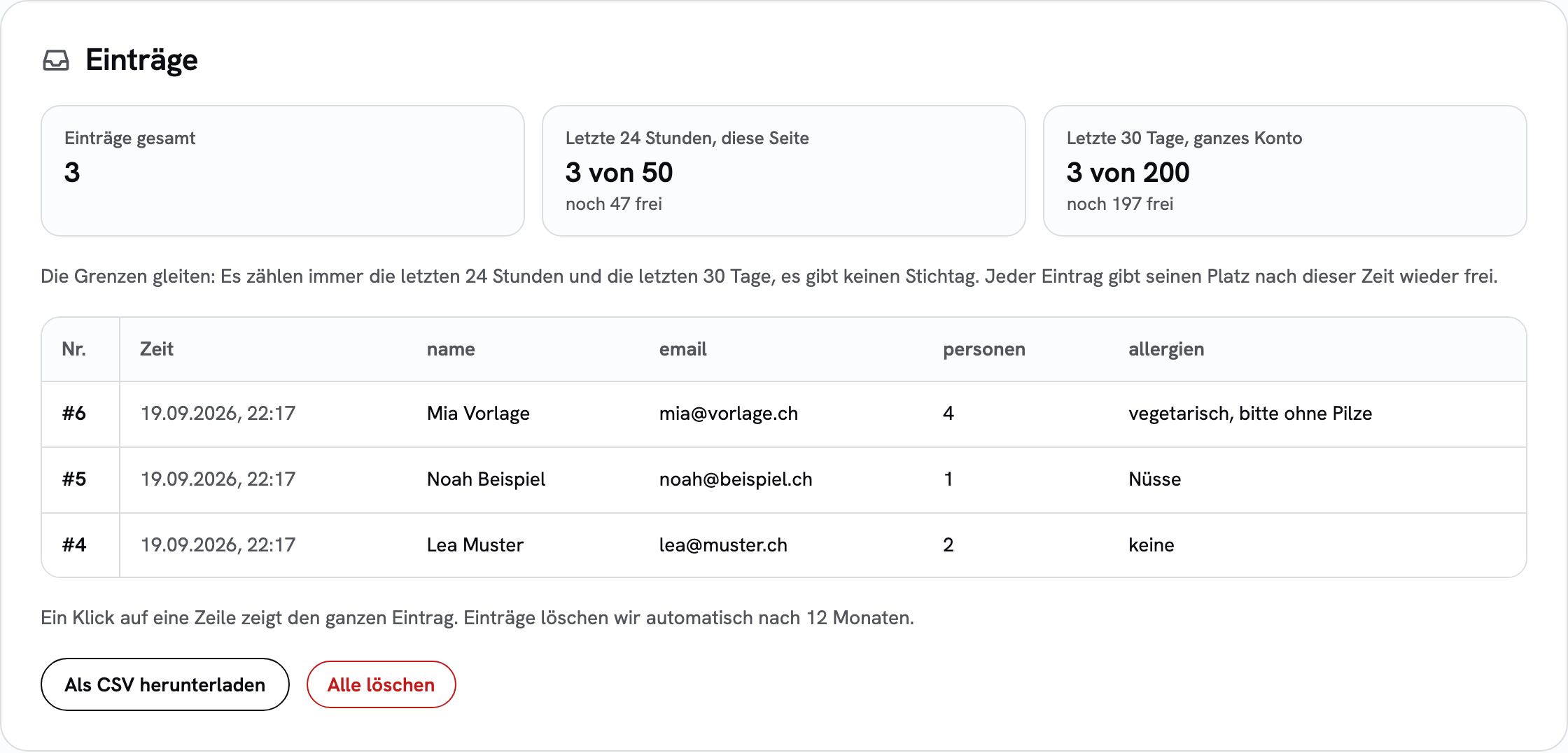
- Entry in the app in the page's "Entries" section, as "Booking · First call" with time and status. If the page also has a form, you can filter by "Forms" or "Bookings". If you have set up a webhook, the booking goes there too, with the form name
buchung:erstgespraech.
Cancelling and reminders
24 hours before the appointment, the person booking gets a reminder, provided there were more than 24 hours left when they booked.
They can cancel through the link in the email until the appointment starts. The event then disappears from your calendar, both of you get an email, and the time is free again. You cancel in the list of bookings under Settings › Bookings, with a sentence to the person booking if you like. There is no separate step for rescheduling: cancel and book again.
Privacy
sharepa stores the name, email, phone number and the answers to your questions as a form entry. The same rules apply as for any form: you can delete entries, and after 12 months we delete them automatically. You are responsible for this data. Say at the booking who you are and what you need the details for, and list Google as a recipient in your privacy policy, because the appointment is in your Google Calendar.
From Google, sharepa only reads when you are busy, and it only creates or deletes the booked events. We use the data from your calendar for nothing else, not for advertising, and we do not pass it on. The details are in the privacy policy.
What it costs
Bookings are part of the one-time plan and cost nothing extra. Every booking counts as an entry, so the same limits apply as for forms: 500 per page and day and 5000 per account in 30 days. On top of that, at most 50 bookings per account and day. If your account falls back to free, no new bookings come in. Existing appointments, reminders and cancellations keep working.
Questions
Does sharepa see what is in my calendar?
No. sharepa only asks Google when you are busy. sharepa never sees the titles, guests, locations or descriptions of your events. It can only add and delete the events it created itself.
What happens if I delete a booked event directly in Google?
sharepa notices and shows the booking as cancelled by you. The person booking does not get an email then, because it is not clear whether you meant that. Better cancel in the app, then they are told.
Does this work with Outlook, Apple or Cal.com?
No, only with Google Calendar for now. Paid appointments, appointments for teams and SMS reminders are not available either.
Is this available on the free plan?
No, bookings are part of the one-time plan. On the free plan you can build a form where visitors enter their preferred time.